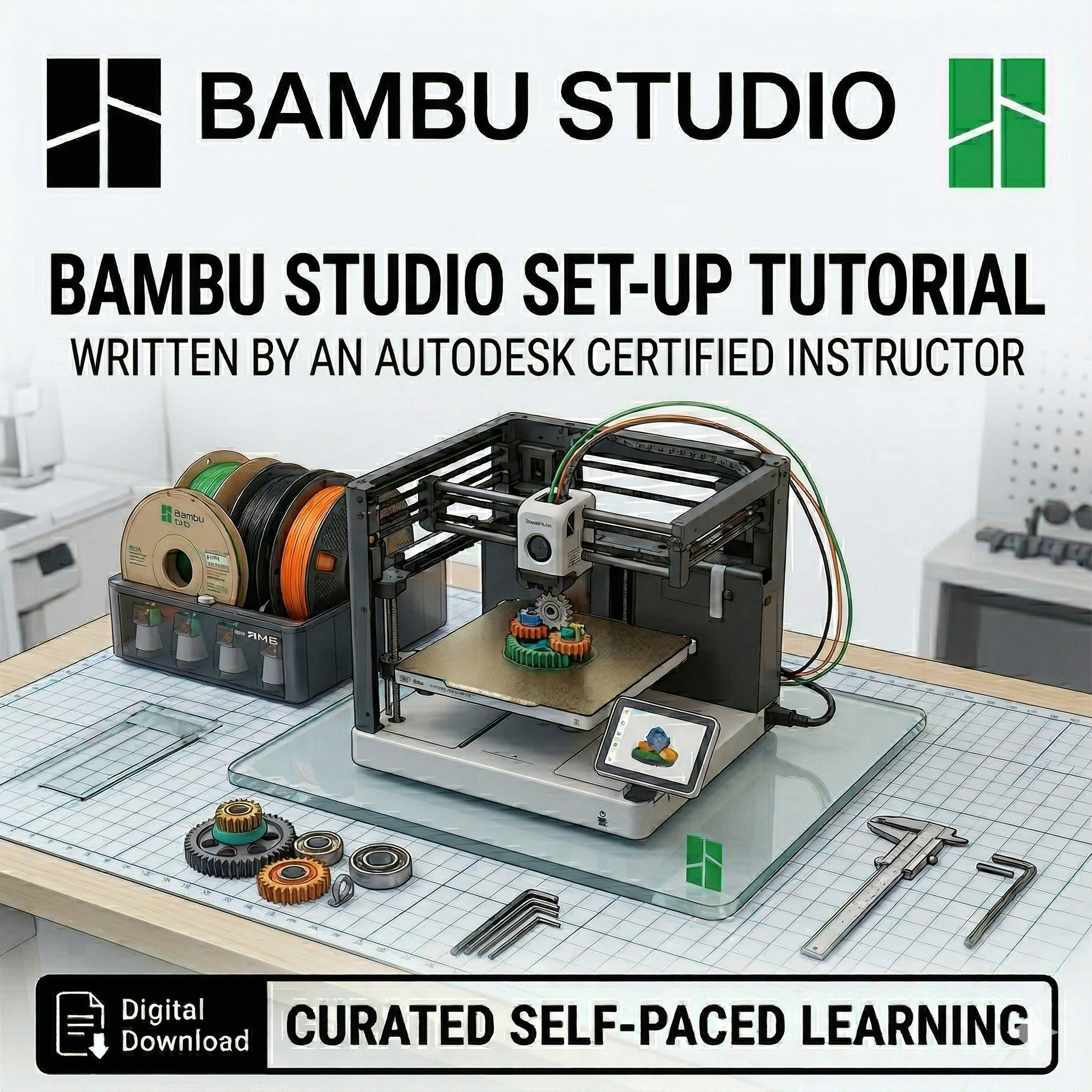
This tutorial provides a comprehensive guide to installing and configuring Bambu Studio, the dedicated software for the Bambu Lab range of 3D printers. It is designed to help users synchronize their workflow across desktops, mobile devices, and their 3D printers.
The guide walks you through the initial setup in a step-by-step format, covering:
Installation: How to locate and download the correct version of the software for Windows or MacOS.
Initial Configuration: Selecting your login region and hardware.
Note: For printers purchased via the CadClub Makers Shop, the guide recommends selecting the Bambu Lab A1 Mini with a 0.4mm nozzle.
Filament & Networking: Guidance on selecting filaments and installing the Network Plugin, which enables remote print monitoring and live camera feeds.
Account Synchronization: Creating a Bambu Lab account to wirelessly connect your computer and the Bambu Handy mobile app (available on iOS and Android) to your printer.
Once you have completed this setup, you will be ready to bind your printer via QR code and begin your first 3D printing adventure.
Ready to print? After finishing this guide, move on to our "Bambu Studio Printing" tutorial to start your first project
This tutorial provides a comprehensive guide to installing and configuring Bambu Studio, the dedicated software for the Bambu Lab range of 3D printers. It is designed to help users synchronize their workflow across desktops, mobile devices, and their 3D printers.
The guide walks you through the initial setup in a step-by-step format, covering:
Installation: How to locate and download the correct version of the software for Windows or MacOS.
Initial Configuration: Selecting your login region and hardware.
Note: For printers purchased via the CadClub Makers Shop, the guide recommends selecting the Bambu Lab A1 Mini with a 0.4mm nozzle.
Filament & Networking: Guidance on selecting filaments and installing the Network Plugin, which enables remote print monitoring and live camera feeds.
Account Synchronization: Creating a Bambu Lab account to wirelessly connect your computer and the Bambu Handy mobile app (available on iOS and Android) to your printer.
Once you have completed this setup, you will be ready to bind your printer via QR code and begin your first 3D printing adventure.
Ready to print? After finishing this guide, move on to our "Bambu Studio Printing" tutorial to start your first project